The default way to add AI to a product is a cloud API from a provider like OpenAI, Anthropic, or Google. It's fast to adopt, and for a lot of work it's the right call. But it comes with quiet costs: every prompt and document is processed on infrastructure the provider operates, the bill scales with usage, you're subject to their quotas, and the model under you can be updated or retired on their schedule.
There's another option that has become genuinely practical: run the model yourself, on a computer you already own. Open models are good enough for a large slice of real work now, and ordinary hardware — a gaming PC, an Apple Silicon Mac, even a well-specced mini PC — can run capable models locally.
HostAnywhere's AI Server turns one of your own machines into a private AI server: install open models in one click (no terminal), add a ChatGPT-style web chat, and reach it privately from your other devices — or publish it over a secure HTTPS tunnel — without giving the machine a public IP or opening inbound ports. This guide covers what it is, how to bring one up step by step, what to use it for, and an honest look at where a private AI server beats a cloud provider, and where it doesn't.
1. What an AI Server is
An AI Server is a computer you own, turned into a private inference server. Instead of your apps and your browser talking to a cloud model, they talk to a model running on your hardware. HostAnywhere handles the parts that are usually fiddly:
- The runtime and models. One click installs and runs Ollama on the device — no terminal — and shows you models your hardware can actually run. Pick one, click install.
- A browser chat UI. Optionally, HostAnywhere installs and keeps Open WebUI running on the device — a ChatGPT-style interface for your local models.
- Reach from anywhere. Use it privately from any of your devices, or publish the chat UI through a secure HTTPS tunnel with one click — the machine needs no inbound firewall rule and no public IP.
The key property is that the model, the compute, and your stored conversations run on hardware you control. When you use the private network, requests travel between your own devices over an encrypted connection. If you expose Web Chat publicly, encrypted request and response traffic passes through HostAnywhere's relay — but the model, the compute, and the stored conversations stay on your machine rather than being sent to a third-party AI provider.
AI Server is a desktop / server capability — macOS, Windows, and Linux, including Raspberry Pi and cloud VMs. Phones join the network as clients and can use your models, but can't host one.
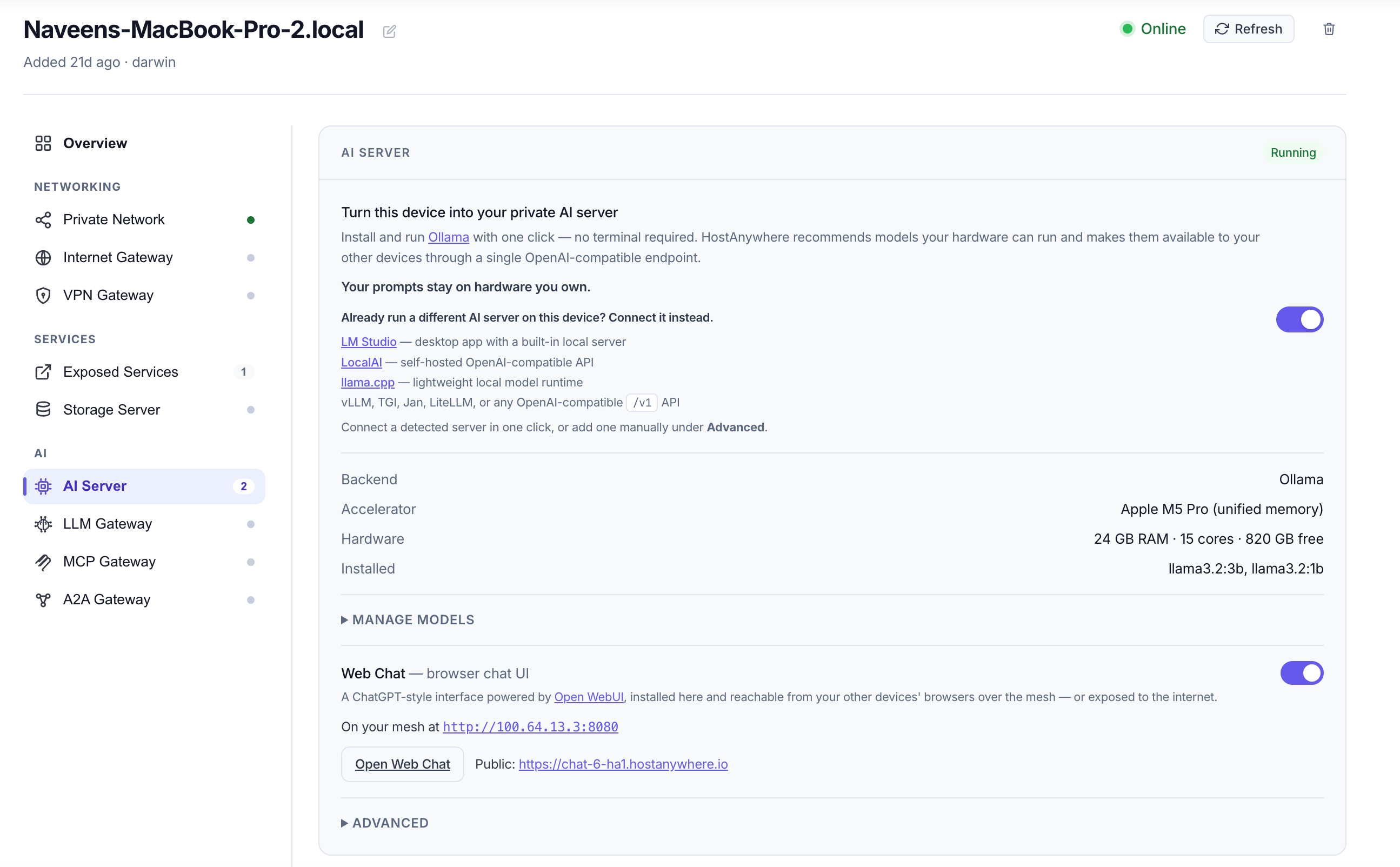
2. What you need (hardware)
You don't need a data center. You need a machine that's on when you want to use it and has some spare memory. Rough guidance:
| Machine | What it runs well |
|---|---|
| Apple Silicon Mac (M-series, 16 GB+) | A good fit for smaller quantized models. More unified memory allows larger models and longer contexts. |
| PC with a modern GPU (8–24 GB VRAM) | Usually the fastest local option. Available VRAM strongly affects model size, context length, and performance. |
| CPU-only desktop / mini PC / cloud VM | Suitable for smaller models and background workloads, but interactive generation may be considerably slower. |
| Raspberry Pi | Best suited to very small quantized models, lightweight tasks, and experimentation. |
Memory needs vary with the model, its quantization level, and context length — a smaller quantized model can run comfortably on a modest machine, while higher-precision models or longer contexts want substantially more. Treat the table above as general guidance, and use HostAnywhere's per-device model recommendations as the practical guide. A GPU — or Apple Silicon's unified memory — is what turns "it technically runs" into "it's fast enough to enjoy."
Choosing hardware from scratch? See our complete guide to building your own AI server at home, including hardware tiers, memory recommendations, and power costs.
3. Bring it up, step by step
Turn on the AI Server
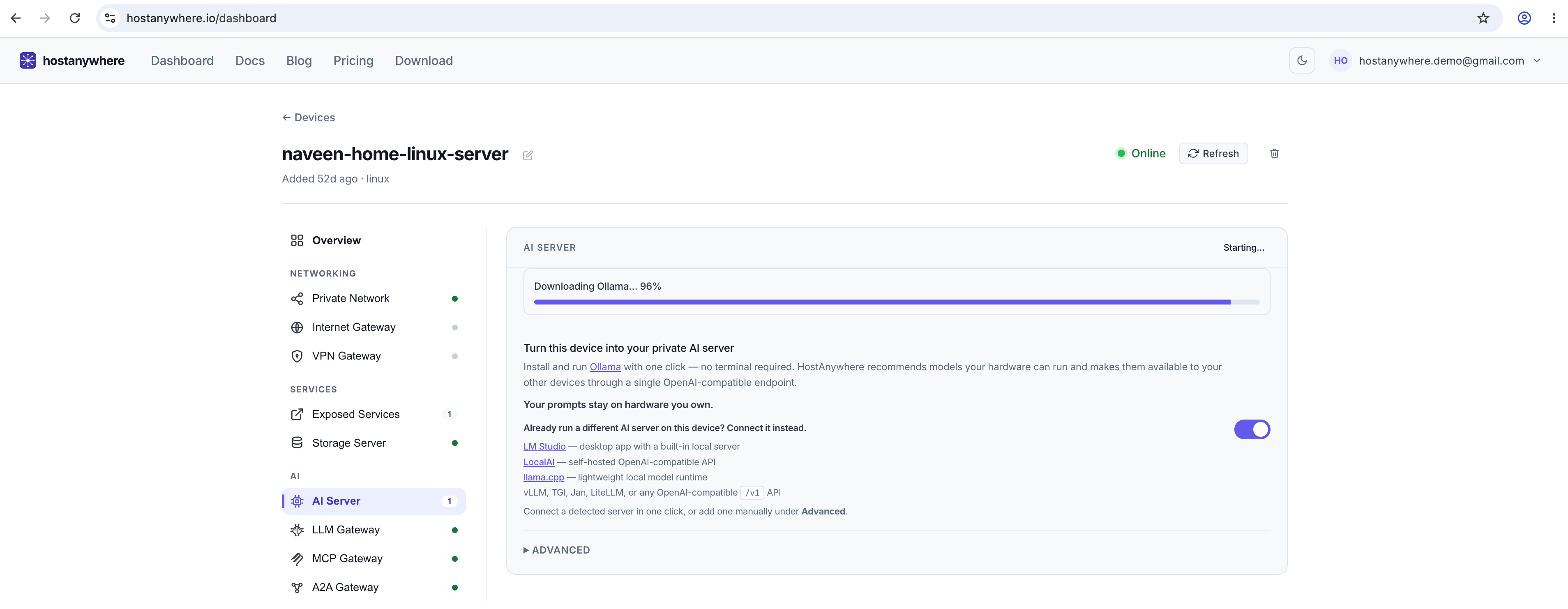
Sign in to the dashboard, go to Devices, and pick a Mac, Windows, or Linux machine that's on often and has spare RAM. Open its AI Server section and click Install & start Ollama. HostAnywhere downloads and runs the runtime for you and lists models your hardware can handle. No terminal, no PATH wrangling.
Install a model
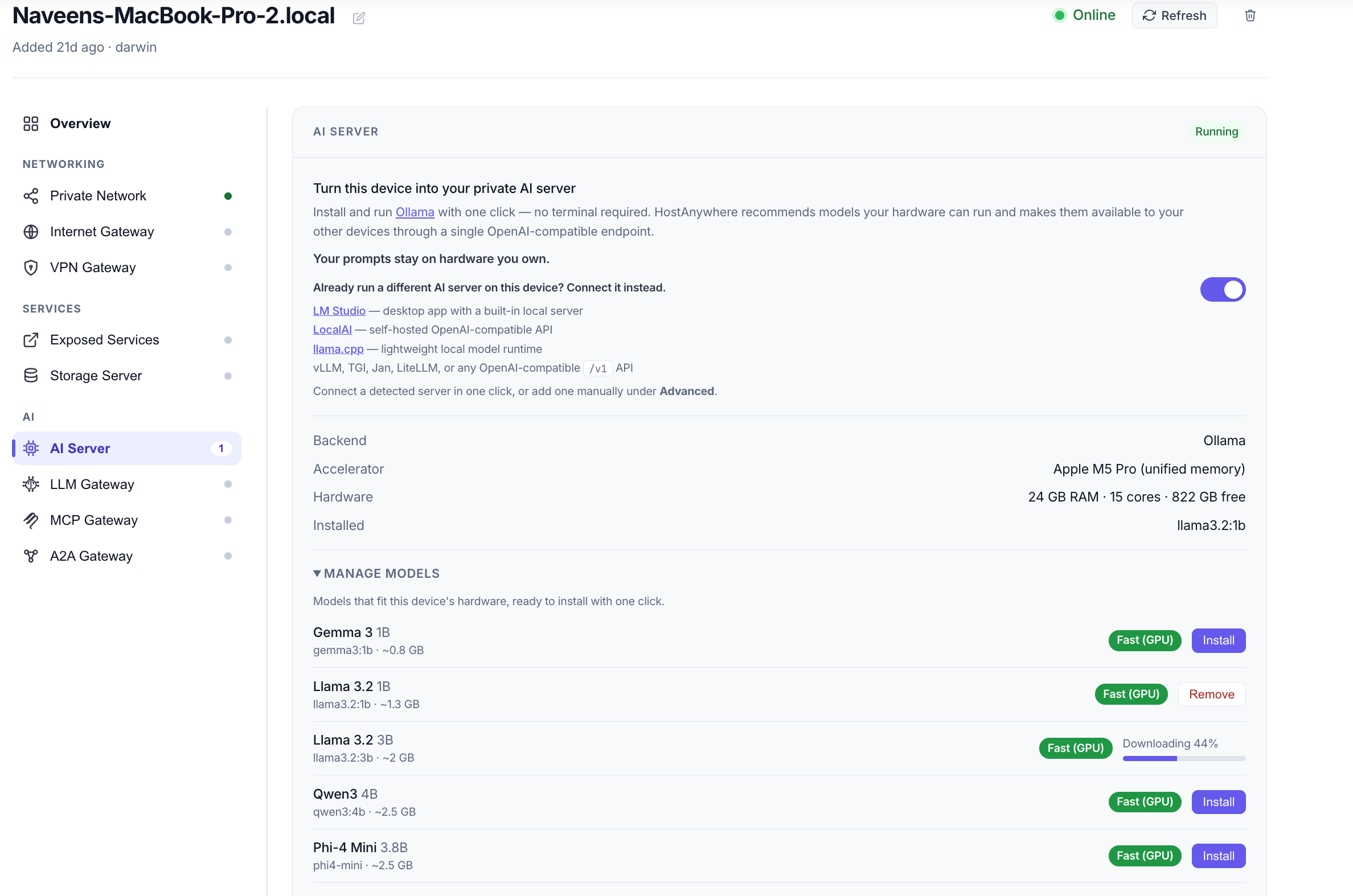
Under Manage models, pick a suggested open model — say deepseek-r1:8b, or a Llama or Qwen variant — and click install. Progress shows inline, and it appears under Installed when ready. Start with a smaller model to confirm speed on your hardware, then move up if it's comfortable.
Prefer your own backend? Bring it.
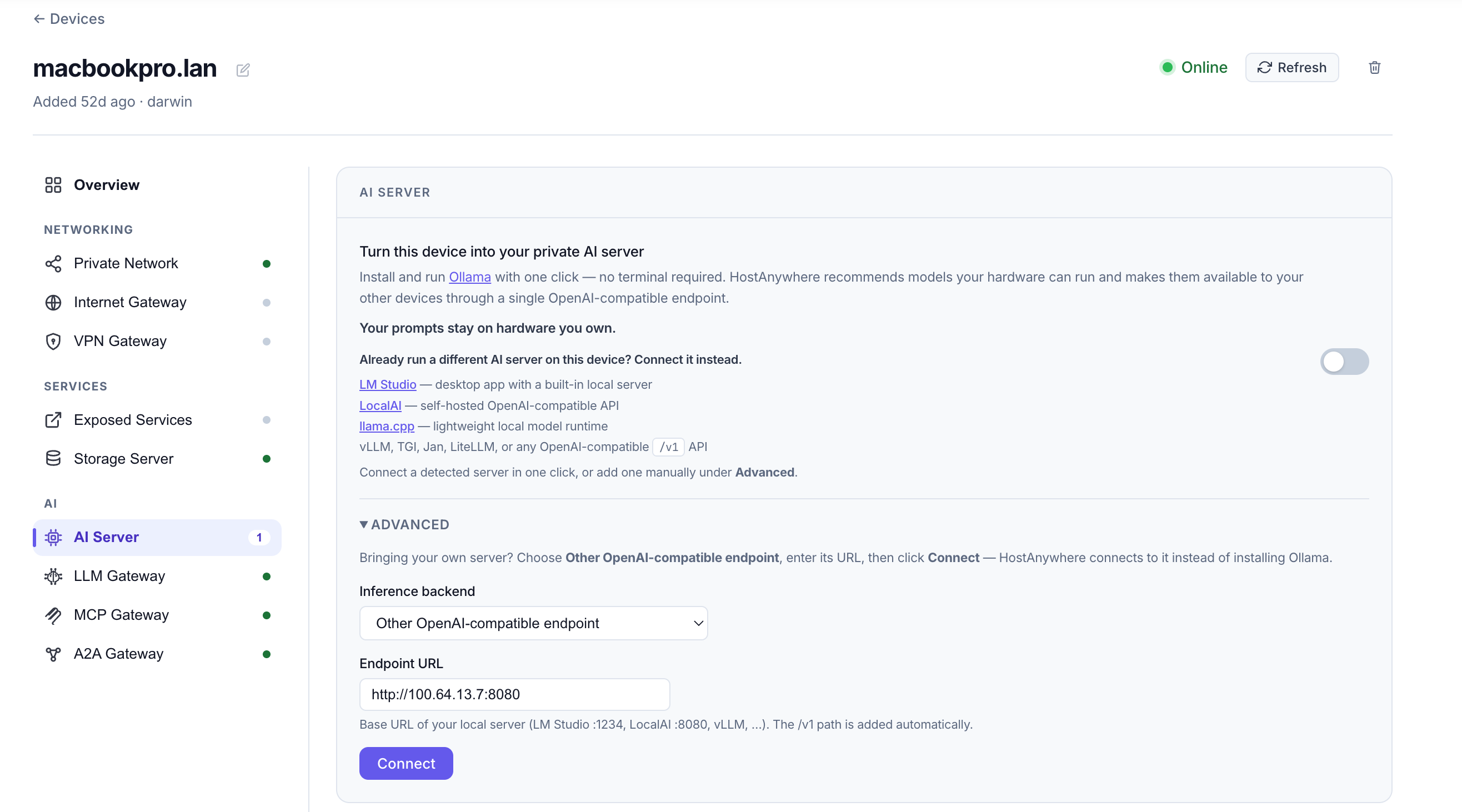
Already run a model server on that machine? Expand Advanced, set the Inference backend to Other OpenAI-compatible endpoint, enter its base URL, and click Connect. It works with LM Studio, LocalAI, llama.cpp, vLLM, Jan — anything that speaks the OpenAI /v1 API. HostAnywhere then handles the networking and web chat on top of your existing setup.
Add a browser chat UI (Web Chat)
In the device's AI Server section, turn on Web Chat. HostAnywhere installs Open WebUI on the device — it moves through Downloading → Installing → Starting → Running (the first install pulls Python dependencies, so give it a minute). When it's running, the dashboard shows a private URL like http://100.64.13.10:8080 and an Open Web Chat button.
Ports. Web Chat serves on
8080and the model API on11434, both on the device's private network address. You never open these to the internet directly — private access is, well, private, and exposing (below) tunnels port8080out over HTTPS.
Create your admin account (before exposing)
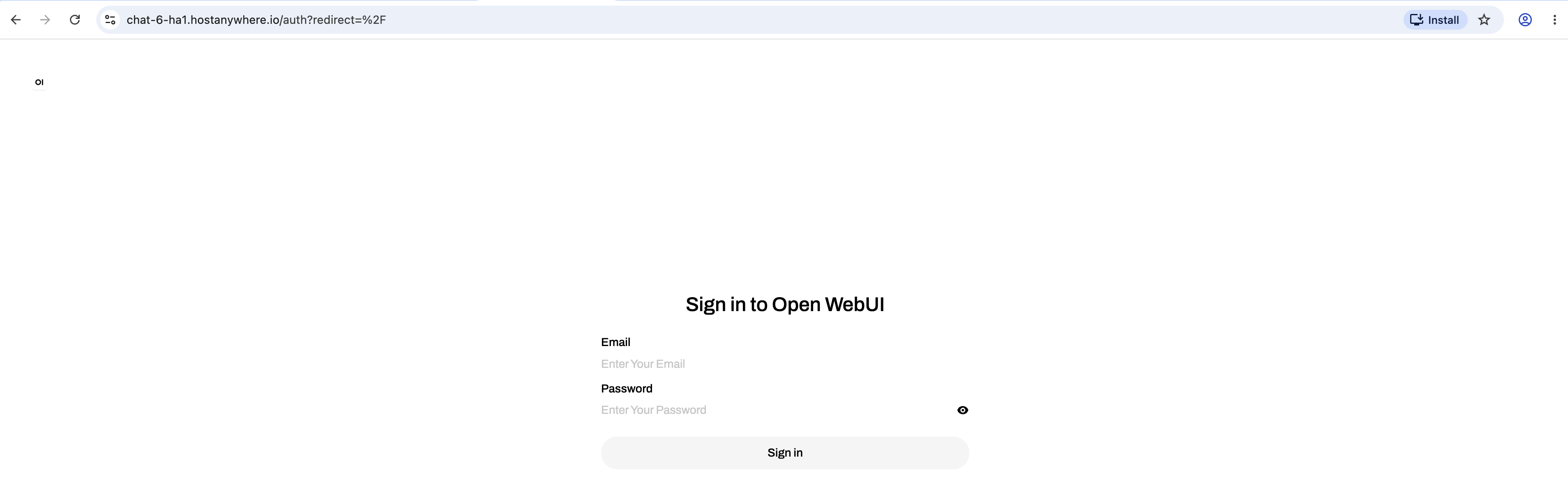
Open the private link from any of your devices and sign up. Two things to know:
- There's no default password — the first person to sign up becomes the admin and sets their own credentials.
- Until an admin account exists, Expose to the internet stays disabled. It's a deliberate guard so you can never accidentally publish an open, login-less instance.
Use it over your private network
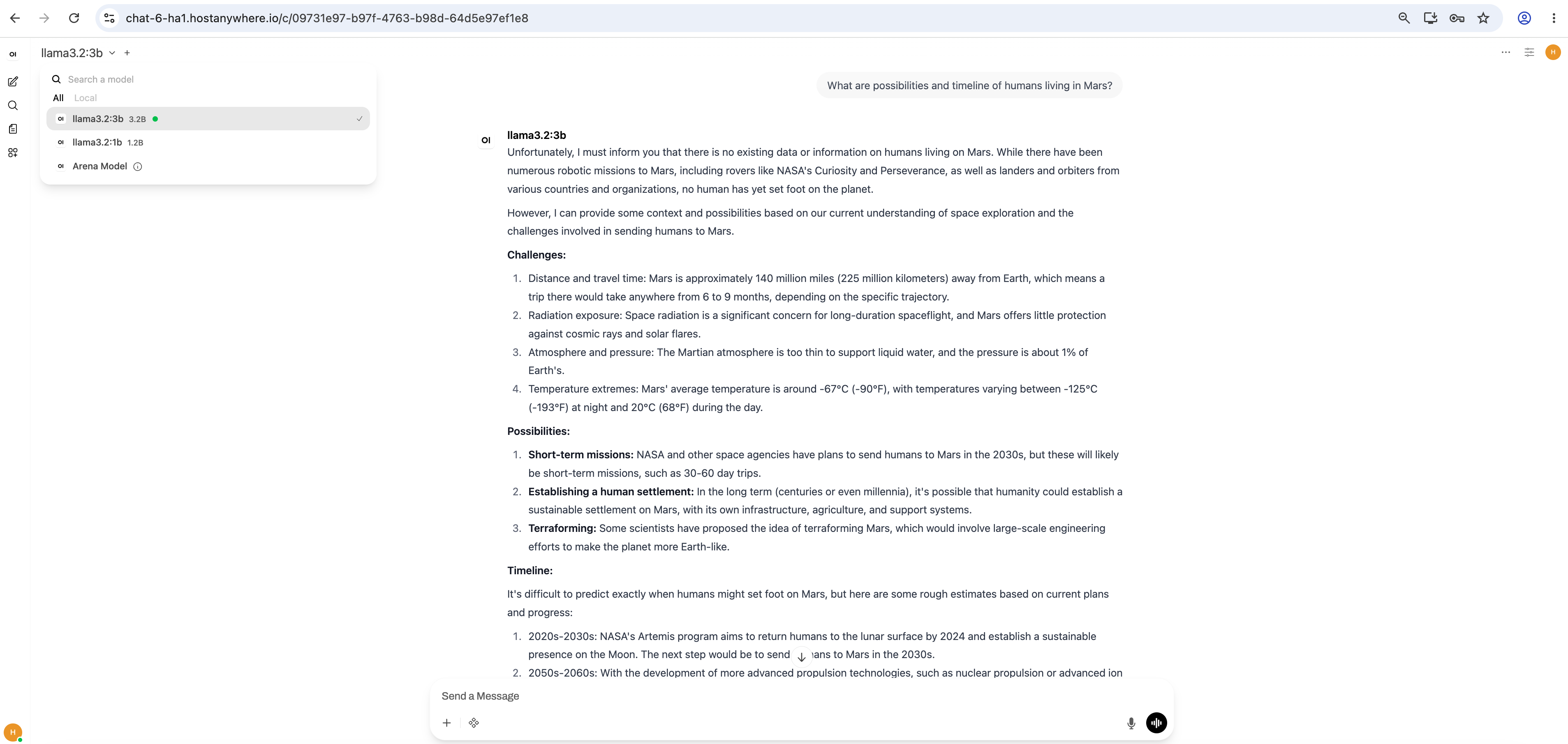
Click Open Web Chat from any device signed in to your account, pick a model, and chat. Requests run on your hardware and travel between your devices over the encrypted HostAnywhere mesh. No request is sent to a third-party AI provider unless you explicitly configure one.
Expose it to the internet (optional)
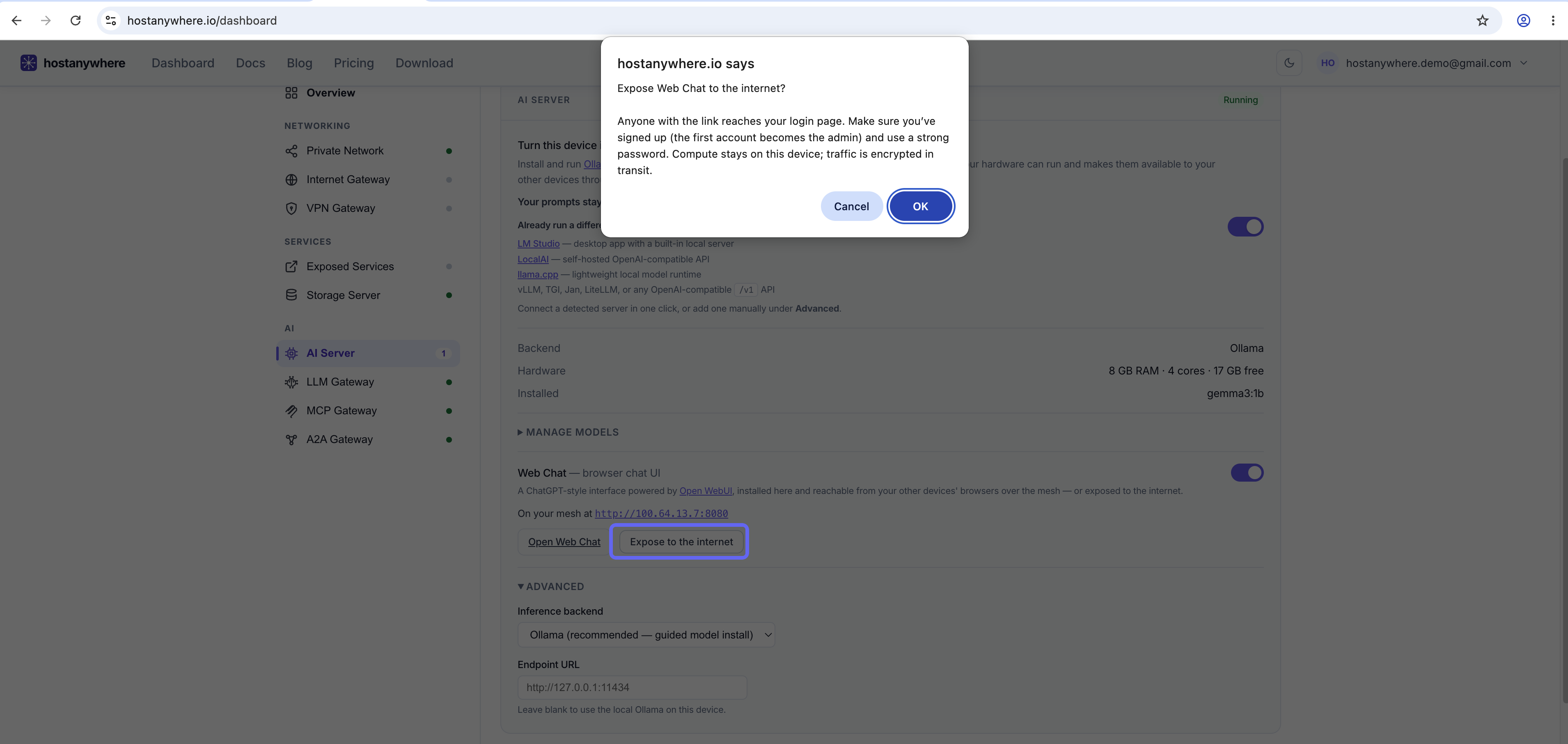
Want your private AI from anywhere — a phone on cellular, a laptop off your network? In the Web Chat panel, click Expose to the internet and confirm. HostAnywhere provisions a public HTTPS address like https://chat-ha1.hostanywhere.io that tunnels straight to the Web Chat on your device. No port forwarding, no public IP, no inbound firewall changes. The compute and the model stay on your machine; only the encrypted request/response traffic transits the tunnel, and access is protected by the login you created. Anyone with the public URL can reach the login page, so protect the administrator account with a strong, unique password.
Reach it from your code
Web Chat is for browsers. For code, point any OpenAI-compatible client at the device's model endpoint over your private network:
curl https://100.64.13.10:11434/v1/chat/completions \
  -H "Content-Type: application/json" \
  -d '{"model":"deepseek-r1:8b","messages":[{"role":"user","content":"Hello"}]}'
Or put an AI Gateway in front for one stable URL, API keys, routing, and cloud failover (more on that below).
4. What to use it for
A private AI server shines wherever privacy, volume, or control matter:
- A private chat assistant for you or your team — Open WebUI on your own hardware, reachable from any device, with none of your conversations leaving your control.
- Working with sensitive or proprietary information — legal, medical, financial, or source code — where local processing and data residency matter. (You should still evaluate the full deployment against your own security, contractual, and regulatory requirements.)
- A coding assistant that can see your private codebase without shipping it to a vendor.
- High-volume or batch work — classification, extraction, summarization, and evaluation runs — where per-token cloud billing would add up quickly, but local processing runs without provider-imposed usage charges.
- RAG over private documents — use Open WebUI's document and knowledge-base features to ask questions about your own notes, manuals, wikis, and files, with the model running locally.
- Building and experimenting — iterate on prompts and agents without watching a meter, then deploy with the same OpenAI-compatible interface.
- Offline and edge use — the local model keeps answering during an internet outage (remote access and some network features may still need connectivity).
5. Advantages over cloud LLM providers
| Advantage | Why it matters |
|---|---|
| Privacy & data control | Prompts and documents are processed by a model running on your hardware instead of being sent to an external model provider. You control the machine, the model, storage, and retention. |
| Predictable cost | No per-token provider billing. Once the hardware is in place, the incremental cost of more usage is mostly electricity and maintenance (plus any HostAnywhere plan) — a big win for high-volume or always-on workloads. |
| No provider-imposed quotas | You're not restricted by a cloud provider's API tier — though throughput and concurrency are still bounded by your hardware and model runtime. |
| Model permanence | The model you install stays exactly as it is. Cloud models get deprecated, silently updated, or retired — your local one is reproducible and yours until you change it. |
| Open-model freedom | Choose from the open-model ecosystem, switch models freely, and use specialized, fine-tuned, or domain-specific models a cloud provider may not offer. |
| Data residency & control | Keep model processing and storage on infrastructure you choose. This can support data-residency needs — though compliance still depends on the full deployment and your operating controls. |
| Runs without a cloud AI API | Local inference doesn't depend on a cloud model API, so the model keeps running during an internet outage — though remote HostAnywhere access and some network functions may still need connectivity. Reachable from your other devices anywhere without opening a single port. |
6. The honest trade-offs
A private AI server isn't a free lunch, and pretending otherwise helps no one. Here's where a cloud provider still wins:
- Frontier quality. Leading cloud models often outperform models you can run on a single machine for the hardest reasoning, coding, multimodal, and long-context tasks. Open models have gotten remarkably good and are more than enough for many jobs — but if you need top-tier capability, the frontier is still in the cloud.
- Speed depends on your hardware. On a GPU or Apple Silicon, local models are fast and pleasant. On a CPU-only box, expect a few tokens per second — fine for batch, frustrating for live chat.
- Availability and scale. Cloud APIs are designed for high availability and can support far greater concurrency without you provisioning any infrastructure. Your AI server is available only while its host machine and network are running, and its throughput is bounded by that machine's hardware.
- You own a bit of ops. HostAnywhere automates the initial setup, the Web Chat install, and secure access — but you still choose models, keep the machine healthy, manage software updates, and pay for hardware and electricity.
The honest summary: a private AI server is excellent for privacy-sensitive, high-volume, cost-conscious, and offline work — and for a surprising amount of everyday AI. It is not a drop-in replacement for a frontier cloud model on the hardest tasks. Which is exactly why you don't have to choose.
7. Best of both: local-first with cloud fallback
You don't have to pick "all local" or "all cloud." Put an AI Gateway in front of your AI server, and you get one OpenAI-compatible endpoint that:
- routes to your local model first and falls back to a cloud provider automatically when the local target errors or times out — or sends selected requests to a cloud model based on rules such as prompt size, whether an image is attached, application headers, or request metadata;
- keeps provider keys off your apps, and adds caching, spend limits, and usage tracking;
- lets your applications use one stable endpoint while you change the local model, cloud provider, routing rules, or failover order behind it.
That combination — private by default, cloud when it's worth it — is often the sweet spot: cheap and confidential for the bulk of requests, with the frontier a fallback away for the ones that need it.
8. Getting started
If you have a machine that's online regularly, setting up a private AI server is a few guided steps — with a browser chat UI reachable from your phone. (Model download time depends on the model's size and your connection.)
- Install the HostAnywhere agent on the machine and sign in.
- Open the device in the dashboard → AI Server → Install & start Ollama.
- Install a model, turn on Web Chat, and create your admin account.
- Chat from any of your devices — and, if you want, expose it to the internet with one click.
Full step-by-step setup, hardware notes, and the reach-from-code details are in the AI Server documentation.