You don't need a rack in a data center to run AI. A computer you may already own — a gaming PC, an Apple Silicon Mac, a mini PC on a shelf — can run capable open models like Llama, Qwen, Gemma, and DeepSeek-R1, entirely at home. Your prompts get processed on hardware you control instead of being sent to a cloud provider, there's no per-token bill, and the model itself doesn't depend on any cloud AI service.
Quick answer: to build your own AI server at home, start with an Apple Silicon Mac with 16 GB+ of memory or a PC with an 8–12 GB GPU. Install the HostAnywhere agent and turn on AI Server — it installs the Ollama model runtime and a ChatGPT-style Web Chat for you, with encrypted access from your other devices and no router changes.
This guide covers the two halves of the build: the hardware (what to buy or repurpose, memory, storage, power) and the setup (from blank machine to a chat you can open from your phone — without touching a terminal).
- What a home AI server actually is
- Real machines this runs on
- Choosing your hardware (with budget tiers)
- How much RAM do you need for local LLMs?
- Storage, power, and noise
- Step-by-step: set up the AI server
- Use it from anywhere — not just your home network
- Security checklist
- Always-on operation
- What to run on it
- FAQ
1. What a home AI server actually is
A home AI server is a computer on your home network that runs open large language models locally and serves them to your other devices — your laptop, your phone, your code. Instead of every prompt traveling to a cloud provider, inference happens on your own machine:
- A model runtime (like Ollama) runs open models on your CPU, GPU, or Apple Silicon.
- A chat interface (like Open WebUI) gives you a ChatGPT-style page in the browser.
- Secure access connects your other devices to it — at home and away — without exposing your machine to the internet.
You can assemble all of that by hand. This guide uses HostAnywhere to do the assembly for you — it installs and manages the runtime and the chat UI with one click and handles secure access (see the AI Server docs) — but the hardware advice below applies no matter how you set up the software.
2. Real machines this runs on
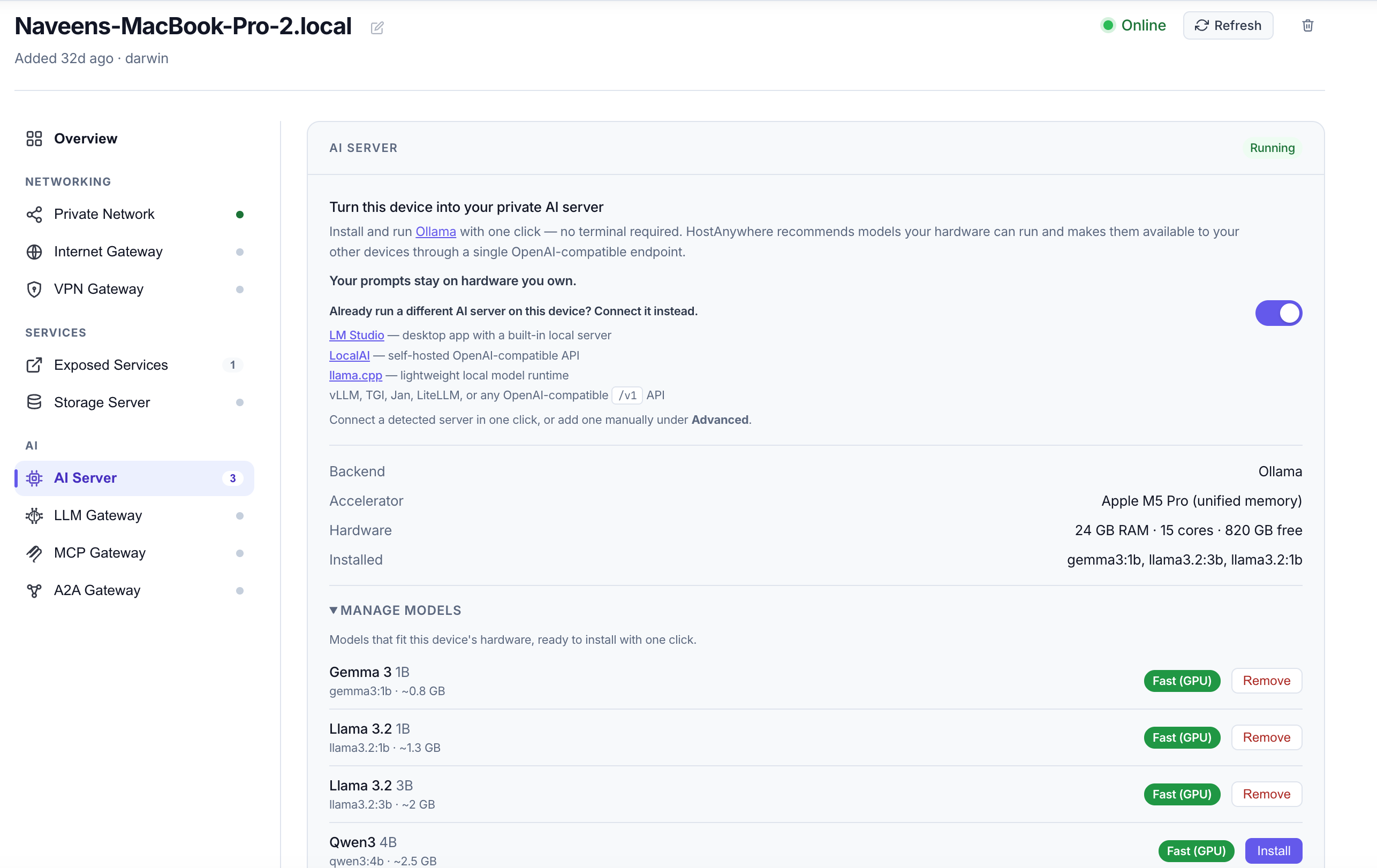
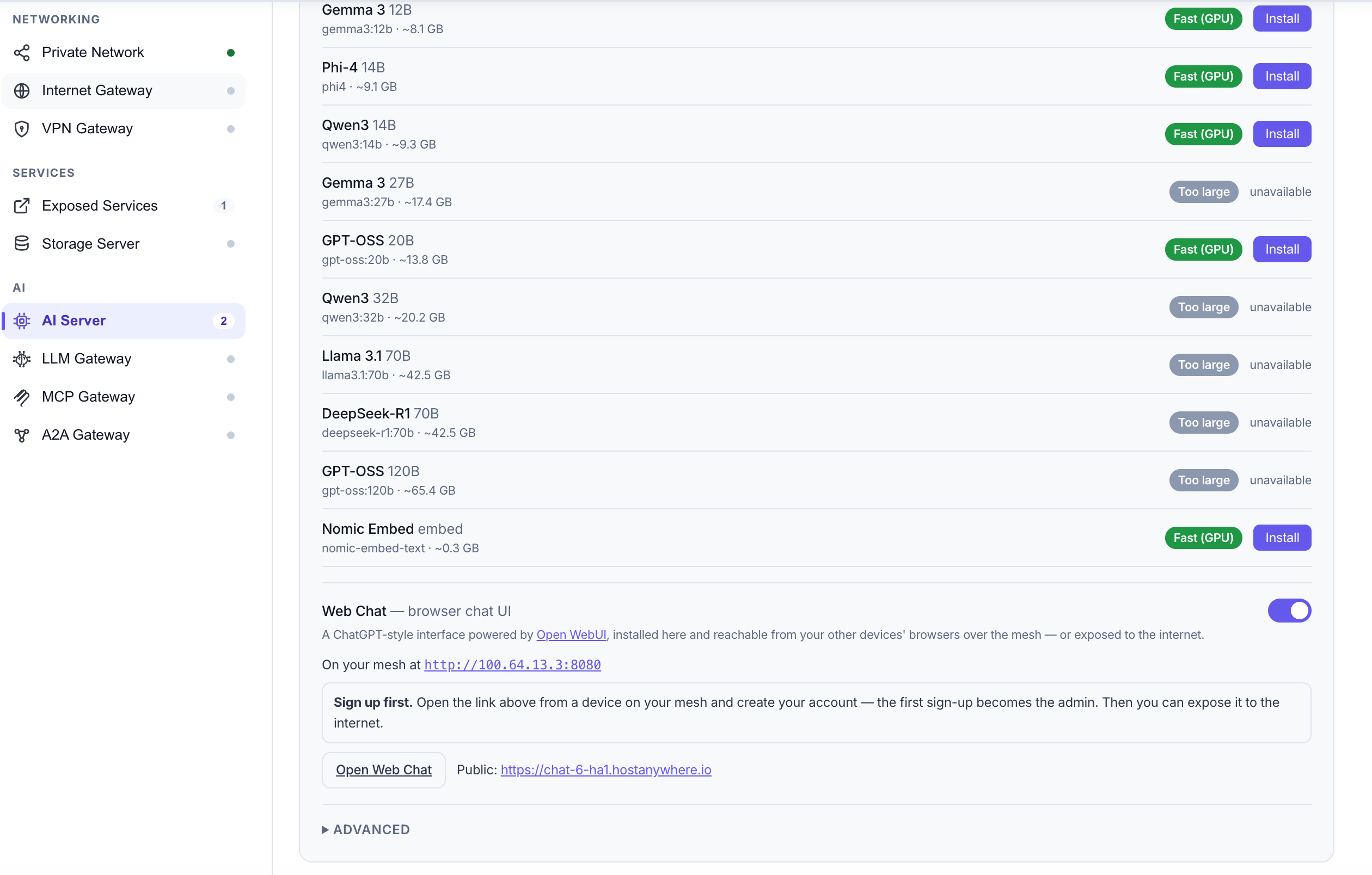
Rather than theoretical specs, here are real machines running the HostAnywhere AI Server today. The dashboard reads each device's actual RAM, GPU, and free disk, then recommends only models the hardware can run — models that fit get a one-click Install (with a Fast (GPU) badge where they'll be quick), and oversized ones are marked Too large with the memory they'd need.
| Machine | Memory | What it runs in practice |
|---|---|---|
| Apple M-series laptop | 24 GB unified | In our testing, ran 1B through 14B-class models with the fast-GPU badge (Llama 3.1 8B, Qwen3 14B, Phi-4). 27B+ models are flagged "Too large — needs ~32 GB." |
| Windows laptop (CPU-only) | 40 GB RAM, 8 cores | Plenty of memory for mid-size models; without a discrete GPU, generation is noticeably slower — comfortable with 1–8B models for non-interactive tasks. |
| Small home Linux server | 8 GB RAM, 4 cores | Runs small models (Gemma 3 1B class) around the clock — ideal for lightweight always-on jobs, not fast chat. |
3. Choosing your hardware for a home AI server
The single most important spec is memory — RAM on a Mac (unified memory), VRAM on a PC with a GPU. It determines which models you can run at all. Speed comes second: a GPU or Apple Silicon makes interactive chat substantially faster, while CPU-only systems are better suited to lightweight or background workloads.
Budget tiers — from $0 upward
| Tier | Hardware | What it runs well |
|---|---|---|
| $0 — repurpose what you own | Your gaming PC (8 GB+ VRAM GPU) or an Apple Silicon Mac (16 GB+) | The best value in home AI. A mid-range gaming GPU or an M-series Mac runs 7–8B models comfortably; 12–16 GB of VRAM or 24–32 GB of unified memory opens up 12–14B models. |
| Small & silent | Mini PC or a Raspberry Pi 5 | Fine for small models (1–4B) — quick summaries, drafting, home-automation tasks, and experimenting. Not ideal for fast interactive chat with larger models. |
| Budget GPU build | A used desktop + a secondhand 12 GB-class GPU | A popular home-lab path: 12 GB of VRAM comfortably runs 7–8B models fast and stretches to quantized 12–14B models. |
| Serious home server | Mac with 32–64 GB unified memory, or a PC with 16–24 GB VRAM | Runs 14B-class models quickly and can reach into 27–32B territory — closing much of the everyday gap with cloud models. |
Phones can't host, but they can use it. An AI server needs a desktop or laptop OS — macOS, Windows, or Linux (including Raspberry Pi and cloud VMs). Your phone then connects to it as a client from anywhere.
4. How much RAM do you need for local LLMs?
Rough, honest guidance. The "model size" column is what the model file itself occupies; "recommended memory" is what the whole machine should have so the OS, the runtime's working memory, and your conversation context all fit:
| Model class | Examples | Model size (quantized) | Recommended total memory |
|---|---|---|---|
| 1–4B (small) | Llama 3.2 1B/3B, Gemma 3 1B/4B, Phi-4 Mini | ~1–3 GB | 8 GB — runs on almost anything, incl. Raspberry Pi 5 (small variants) |
| 7–8B (the sweet spot) | Llama 3.1 8B, Mistral 7B, DeepSeek-R1 8B, Qwen2.5 Coder 7B | ~4–5 GB | 16 GB Mac or an 8 GB+ GPU |
| 12–14B | Gemma 3 12B, Qwen3 14B, Phi-4 | ~8–9 GB | 24 GB Mac or 12 GB+ VRAM |
| 20–32B | GPT-OSS 20B, Gemma 3 27B, Qwen3 32B | ~13–20 GB | 32 GB+ Mac or 24 GB VRAM |
| 70B+ | Llama 3.1 70B, DeepSeek-R1 70B | ~40 GB+ | 48–64 GB+ machines |
Estimates assume a commonly used 4-bit quantized model and a modest context window. Actual usage varies with the model's architecture, quantization level, context length, and concurrency — longer conversations use more memory. Always leave headroom for the operating system. You don't have to get this right by hand: the dashboard reads your machine's real specs and shows which models fit.
5. Storage, power, and noise
Storage
Models are multi-gigabyte files — roughly 1 GB for a 1B model, ~5 GB for an 8B, ~17 GB for a 27B, and 60 GB+ for the largest open models. A handful of installed models can quietly consume 50–100 GB, so give your AI server an SSD with comfortable free space (the dashboard shows each model's download size and your device's free disk before you install). If you plan to ask questions over your own documents, budget extra space for those too.
Electricity
The recurring cost of a home AI server is power. A simple way to estimate:
monthly cost = (system watts ÷ 1000) × hours per day × 30 × your electricity rateFor example, a machine averaging 100 W running 24/7 uses ~72 kWh/month — about $11 at $0.15/kWh. Efficient mini PCs and Apple Silicon machines generally idle far lower than a gaming tower, but actual draw varies by configuration — measure yours with a smart plug for real numbers. Idle draw dominates for a mostly-idle home server, which is why efficient, quiet machines make great AI servers.
Noise & placement
If the server lives in your office or living room, fan noise matters — Apple Silicon machines and mini PCs are near-silent; gaming towers are not. A closet or garage shelf works fine: you'll be using the server from your other devices, not sitting at it.
6. Step-by-step: set up your home AI server
Hardware picked? The software half takes a few guided steps and no terminal.
- Install the HostAnywhere agent on the machine (download for macOS, Windows, or Linux) and sign in.
- In the dashboard, open Devices → your machine → AI Server and click Install & start Ollama. It downloads and runs the model runtime for you.
- Under Manage models, pick a model that fits your hardware — start with a 7–8B model like
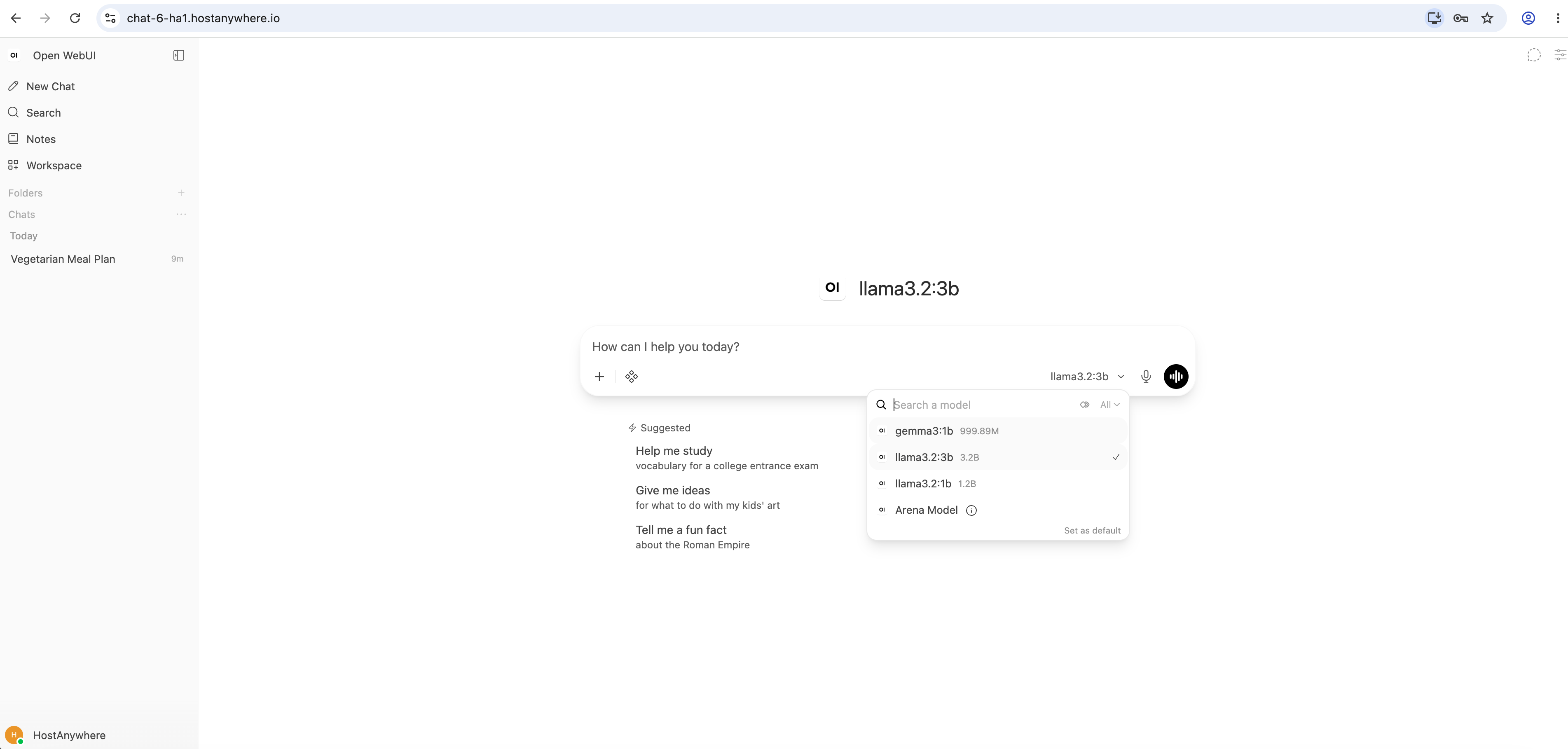
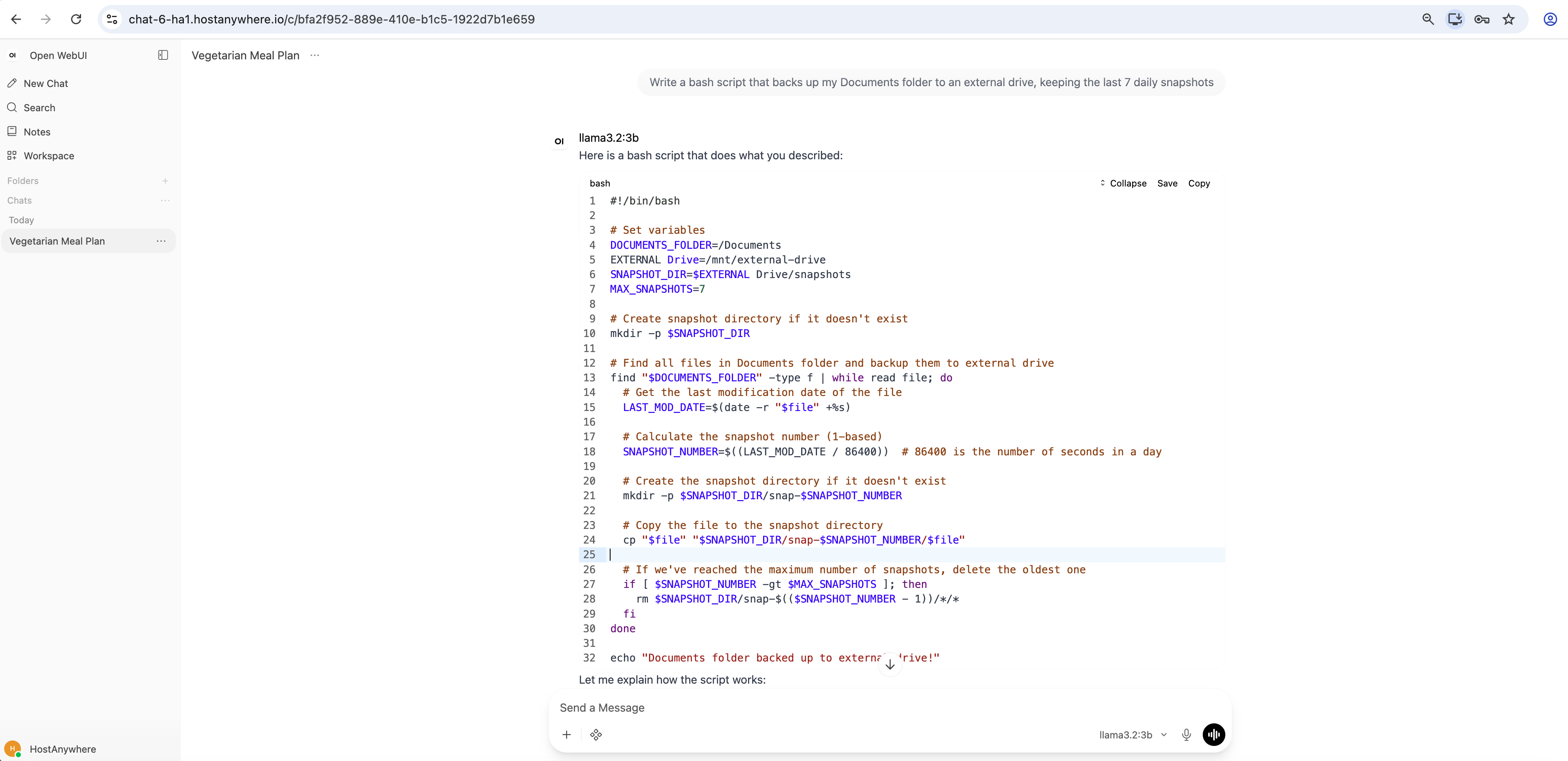
deepseek-r1:8b— and click Install. - Turn on Web Chat to get a ChatGPT-style interface (Open WebUI), installed and kept running for you. Open it from any of your devices and sign up — the first account becomes admin.
Already run LM Studio, llama.cpp, vLLM, LocalAI, or Jan on that machine? You don't have to start over — under Advanced, point the AI server at any OpenAI-compatible endpoint and HostAnywhere handles the networking and chat UI on top of your existing setup.
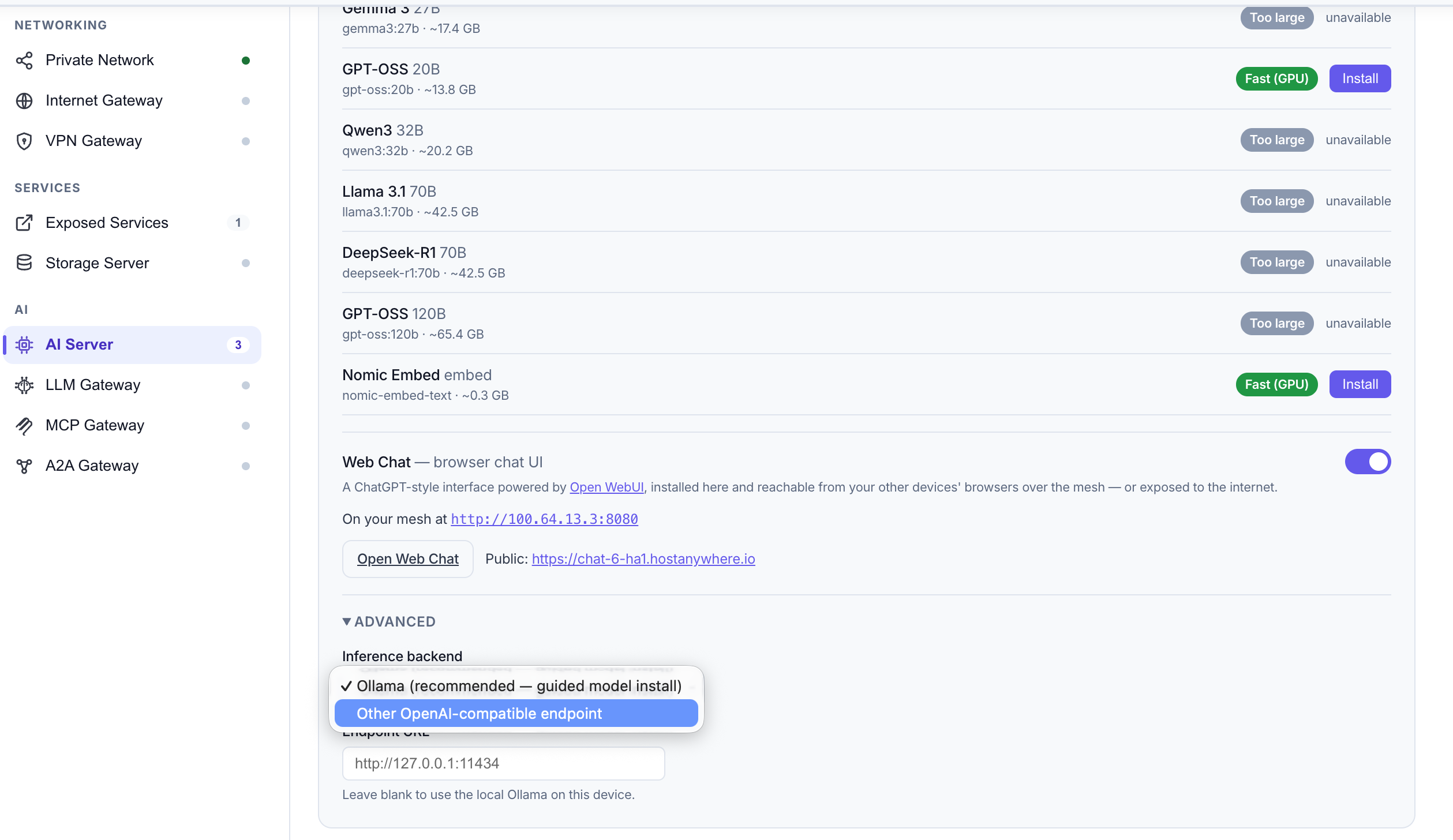
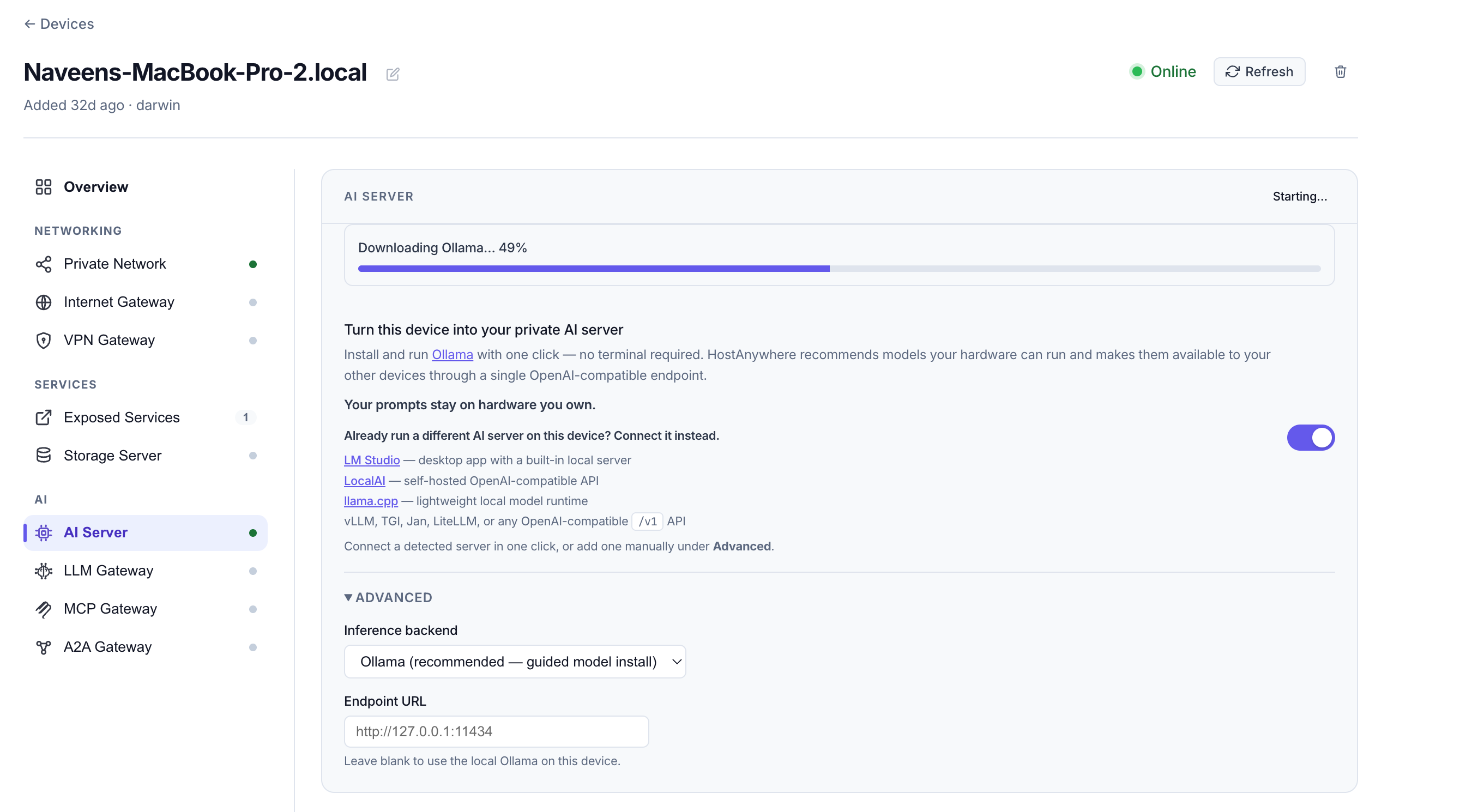
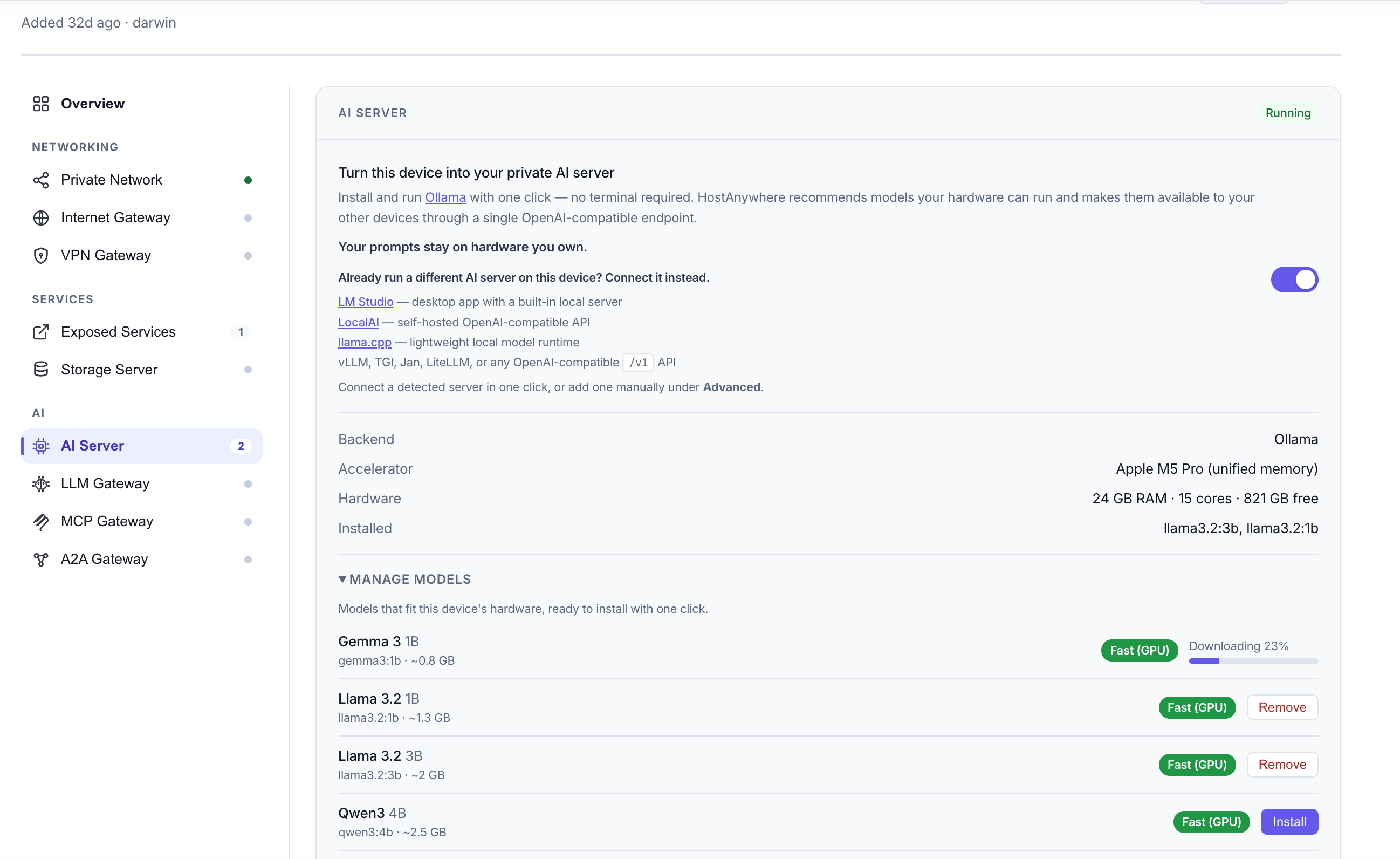
For the full walkthrough with screenshots of every step, see the companion guide: Run your own private AI server.
7. Use it from anywhere — not just at home
A home AI server is most useful when it isn't only reachable at home:
- Private access (default): your devices connect over an encrypted private network — laptop at a café, phone on cellular — with no port forwarding, no public IP, and no inbound firewall changes on your home router.
- Optional public link: one click gives Web Chat a public HTTPS address that tunnels to your machine (the same mechanism as exposing any service), protected by the login you created.
- For code: point any OpenAI-compatible client at your server's endpoint, or put an AI Gateway in front for API keys, routing, and cloud fallback.
8. Security checklist for a home AI server
- Keep access private by default. Your devices reach the server over the encrypted private network — nothing is listening on the public internet.
- Never expose the raw model API directly. The Ollama port serves your private network only; if you share anything publicly, share the Web Chat through the secure tunnel — not the model API.
- Create the admin account before exposing. Web Chat has no default password — the first signup becomes admin, and HostAnywhere deliberately blocks internet exposure until that account exists.
- Use a strong, unique password on the Web Chat admin account — it's the lock on your public link.
- Keep things updated — the operating system, the HostAnywhere agent, and the model runtime and Web Chat software it manages.
- Back up what matters — if you build up chats and knowledge bases you care about, back up the machine like any other server.
9. Always-on operation
Your AI server answers only while its machine is awake, so:
- Desktops and mini PCs are the easy path — set them to never sleep and forget about it. No monitor or login session needed once set up; the agent runs as a background service.
- Laptops work, with one caveat: closing the lid typically sleeps the machine, taking your server offline. If a laptop is your server, keep it plugged in and set it to stay awake.
- Low-power boxes shine here — an efficient machine you're happy to leave on 24/7 beats a powerful one you keep shutting down.
10. What to run on your home AI server
- A private ChatGPT alternative for you and your family — conversations stay on your hardware.
- A coding assistant (Qwen2.5 Coder, DeepSeek-R1) that can see private code without shipping it to a vendor.
- Documents & RAG — Open WebUI's knowledge-base features let you ask questions about your own notes and files, locally.
- High-volume tasks — summarization, classification, extraction — with no per-token provider billing.
- Home-lab automation — a small always-on model for scripts and home projects.
11. FAQ — building an AI server at home
Is a gaming PC good enough to build an AI server at home?
Yes — often ideal. A mid-range gaming GPU with 8–12 GB of VRAM runs 7–8B models fast, and it's hardware you already own, so your build cost is $0.
Can a Raspberry Pi run an AI server?
A Raspberry Pi 5 can run small quantized models (1–3B) — fine for lightweight tasks and tinkering, but expect slow generation. For daily interactive chat, use a machine with a GPU or an Apple Silicon Mac.
Do I need to open ports on my home router?
No. Your devices reach the server over an encrypted private network, and the optional public chat link uses an outbound tunnel — no port forwarding, no public IP, no inbound firewall rules.
How much does it cost to run?
After the hardware, the main ongoing cost is electricity — use the formula in section 5 (a 100 W-average machine running 24/7 is roughly $11/month at $0.15/kWh). There's no per-token billing for local inference.
Is my data private on a home AI server?
Prompts are processed by a model running on hardware you control instead of being sent to an external AI provider — you control the machine, the model, storage, and retention. Traffic between your devices travels over an encrypted network.
Mac or PC for a home AI server?
Both work well. Apple Silicon's unified memory is excellent per watt and silent; a PC with a big GPU is usually the fastest option and easier to upgrade. Pick based on what you own or your budget tier above.
Final recommendation
Start with the machine you already own — a 16 GB+ Apple Silicon Mac or a gaming PC with 8 GB+ of VRAM handles the 7–8B sweet spot beautifully, for $0 in new hardware. Set it up in a few guided steps, chat with it from your phone, and upgrade only if you find yourself wanting bigger models. Download HostAnywhere (see pricing) and follow the AI Server docs — or the step-by-step companion guide.
Watch the full setup
▶ Watch the setup in action — every step above, on a real machine.